
Water Quality walkthrough
Find Filter and Inspect Information
Use existing column filters and sorting to find matching records, inspect their full context, and understand when exports need additional configuration.
Download PDF walkthroughFull narration and screenshots, with a link back to this video.
Find what matters to you
Explore the walkthrough
Choose a chapter to play from that point, or read the full narration below.
Read the walkthrough
Narration and screenshots
The complete narration is below. Search the script or use your browser’s Find command. Select any screenshot to view it at full size.
Introduction
Link to chapterFinding an answer begins with a clear question and the right records. This walkthrough shows existing column filters, sorting, and record inspection, using the Water Quality demonstration. It also explains why a visible export button does not guarantee that a formatted export has been configured.
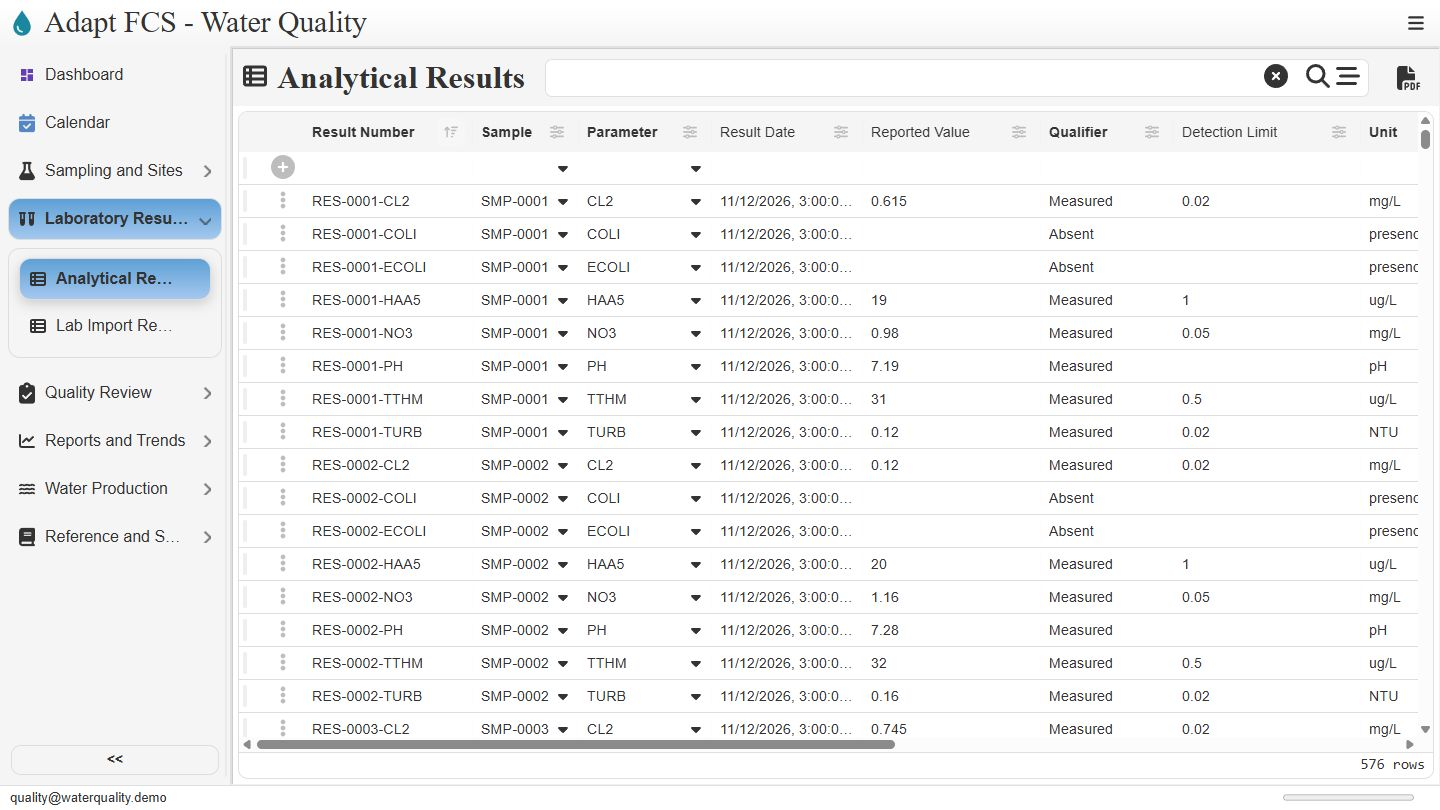
Start with the relevant register
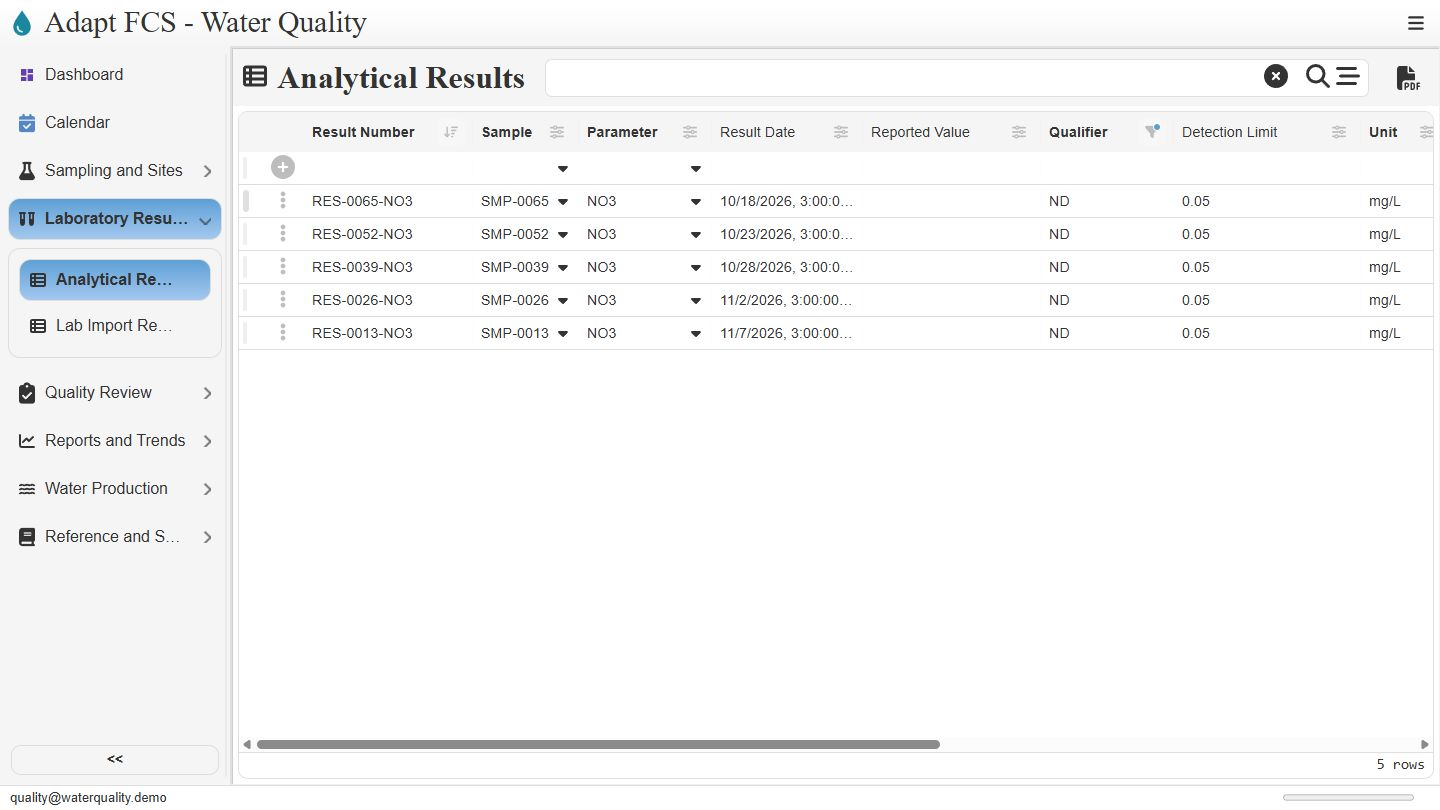
Link to chapterStart by opening the register that contains the information you need. This shared platform walkthrough uses Water Quality as its example. Analytical Results contains five hundred seventy-six seeded records. Rather than reading every row, we will ask a precise question: which records have the nondetect qualifier?
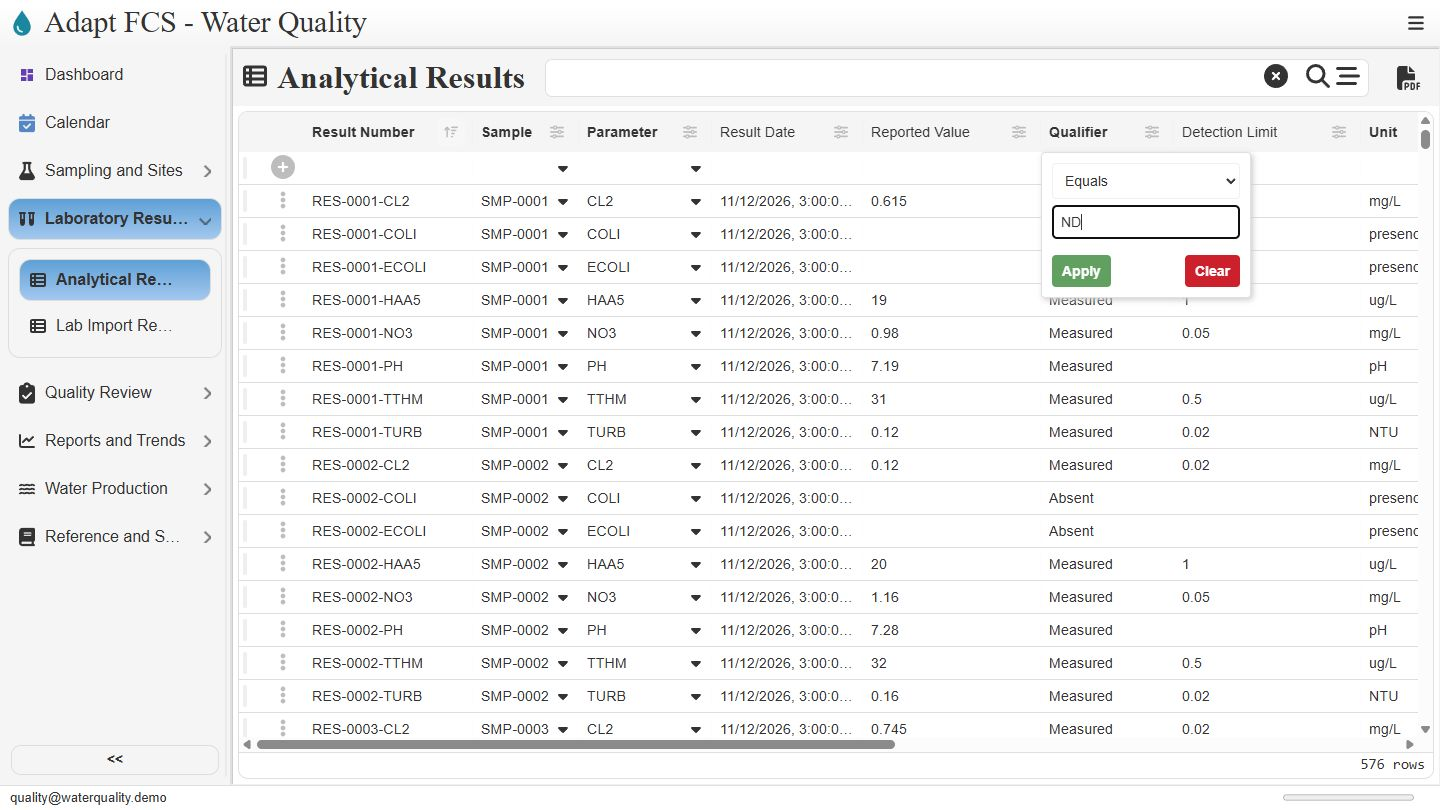
Set an explicit column filter
Link to chapterOpen the options button beside Qualifier and choose Set filter. The menu supports Starts With, Equals, and Contains. Select Equals, enter N D, and apply the criterion. An exact qualifier filter makes the question explicit and avoids confusing nondetect records with ordinary measured values or unrelated text.
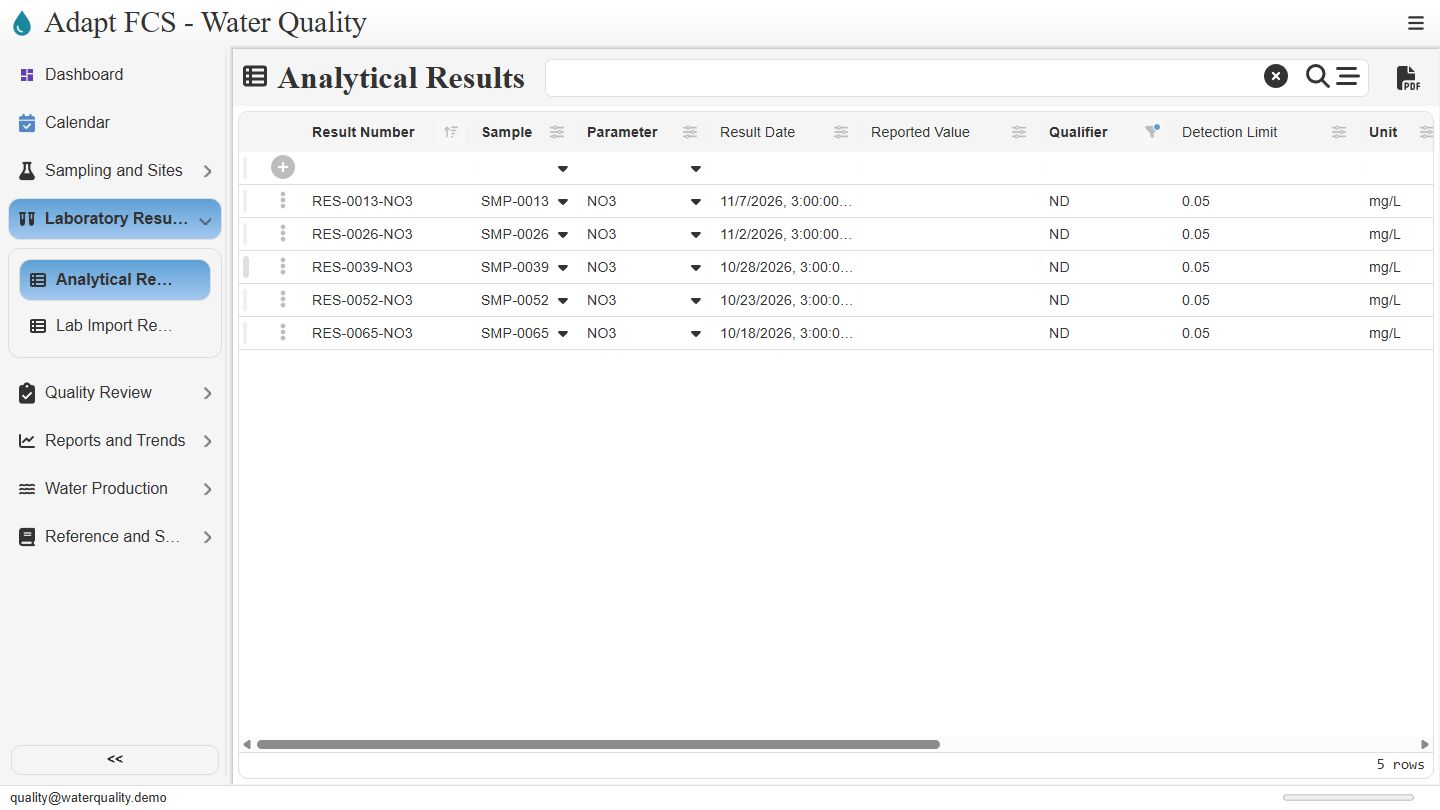
Read the matching set carefully
Link to chapterThe result is five matching rows. Notice the filter indicator beside Qualifier and the row count at the bottom. Reported Value is blank, while the detection limit and units remain present. This distinction matters: a nondetect is not automatically a numeric zero, and filtering does not change the stored results.
Sort the current matches
Link to chapterOpen Result Number options and choose Sort Z to A. The same five records now appear in descending identifier order. Sorting changes presentation, while the qualifier filter determines membership. Check the actual sort column before interpreting sequence: identifier order is not a universal substitute for collection or analysis date order.
Open and expand a source record
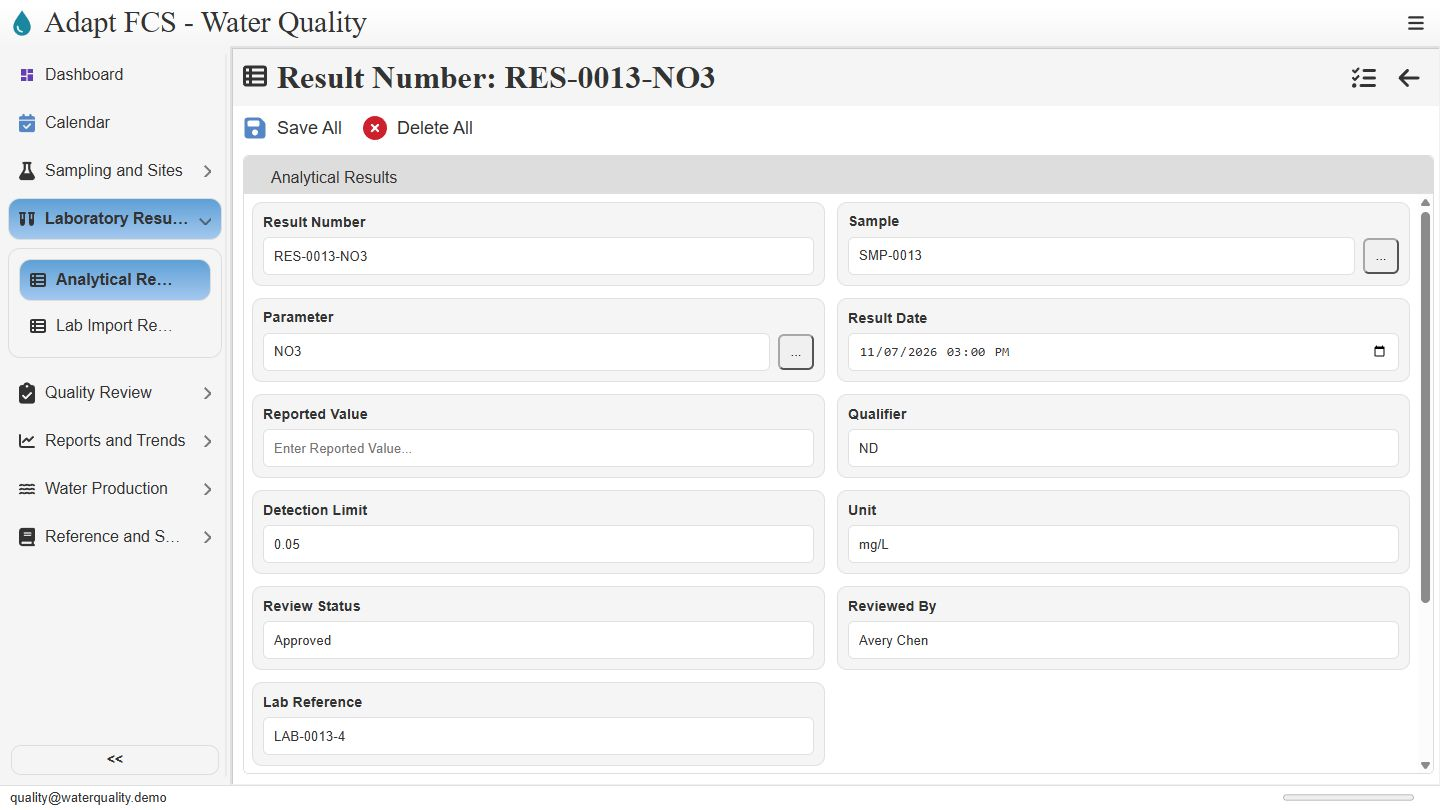
Link to chapterDouble-click the row selector for result zero zero one three nitrate, then expand its record panel. The full view shows sample reference, parameter, analysis date, qualifier, detection limit, units, and recorded review information. This lets you inspect the context behind a matching row. No fields are changed or saved in this demonstration.
Check export configuration separately
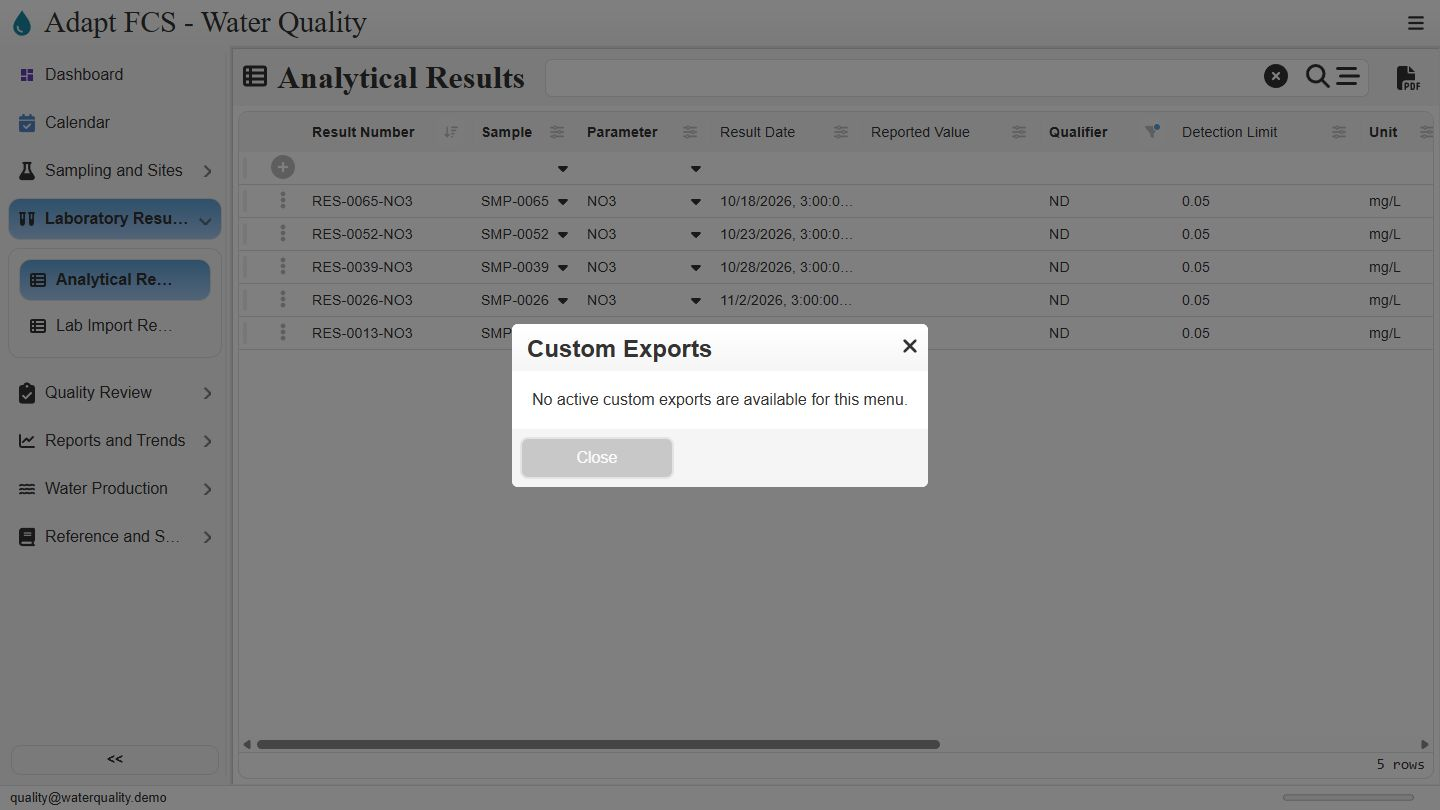
Link to chapterThe Export PDF button opens Custom Exports, but this menu currently has no active custom export available. A usable formatted export needs an administrator to configure an appropriate definition and verify its output. It is not demonstrated here. Returning from record detail also reloads this register with its default sort and filter state.
Closing
Link to chapterInstrumental closing; no narration.
No matching chapters. Try another word or clear the search to read the full script.
About this demonstration
The video uses fictional data and illustrative operating targets. It does not determine regulatory compliance or demonstrate agency submissions, live laboratory/GIS/SCADA connections, offline synchronization, or automatic sampling work generation. Staff and contractor sign-in configurations are examples; organization sign-in requires customer-specific setup and verification.
Video access is public. The interactive application has its own sign-in and permission controls. Version 1 · November 2026.