
Water Quality walkthrough
Plan and Track Sampling
Identify sampling sites, review plans, prepare manual work orders, assign collection work, and track progress through filters, route queues, charts, and related samples.
Download PDF walkthroughFull narration and screenshots, with a link back to this video.
Find what matters to you
Explore the walkthrough
Choose a chapter to play from that point, or read the full narration below.
Read the walkthrough
Narration and screenshots
The complete narration is below. Search the script or use your browser’s Find command. Select any screenshot to view it at full size.
Introduction
Link to chapterThis walkthrough shows how to plan and track sampling in Adapt FCS. We will identify a site, review its sampling plan, prepare a work order, and use assignments, filters, queues, and collection history to follow the work. The demonstration uses fictional records.
Start with the sampling overview
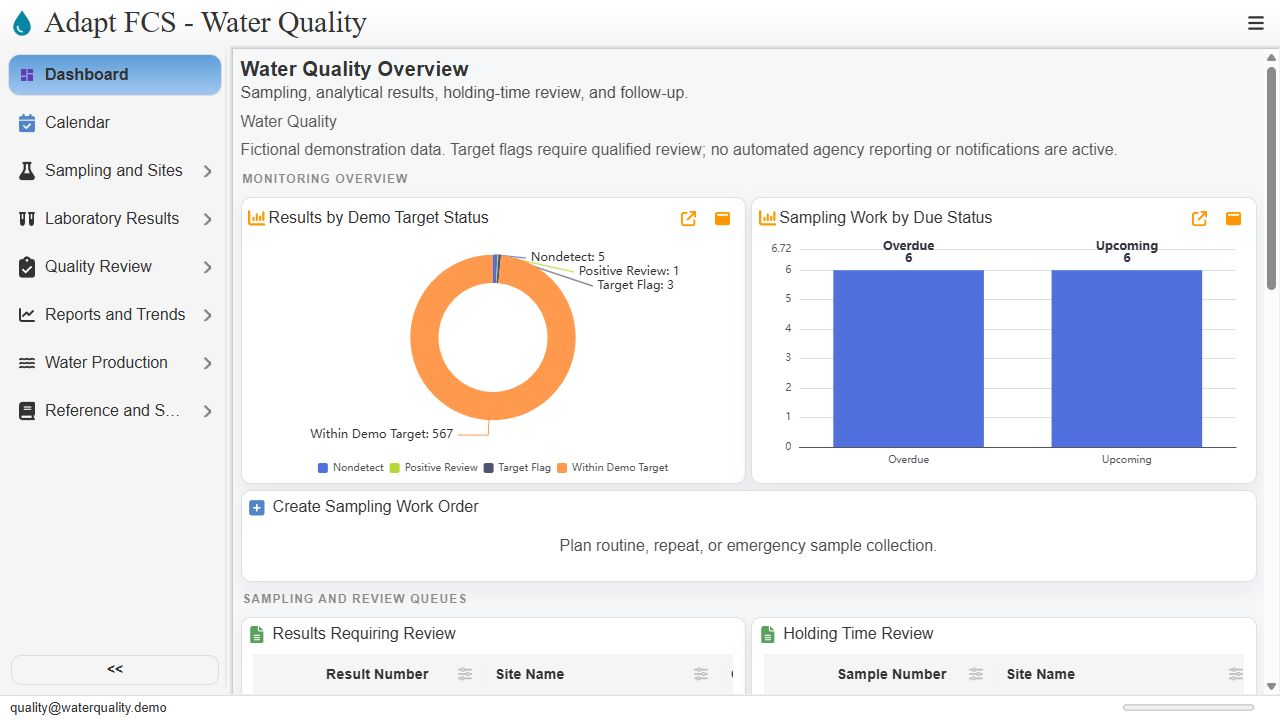
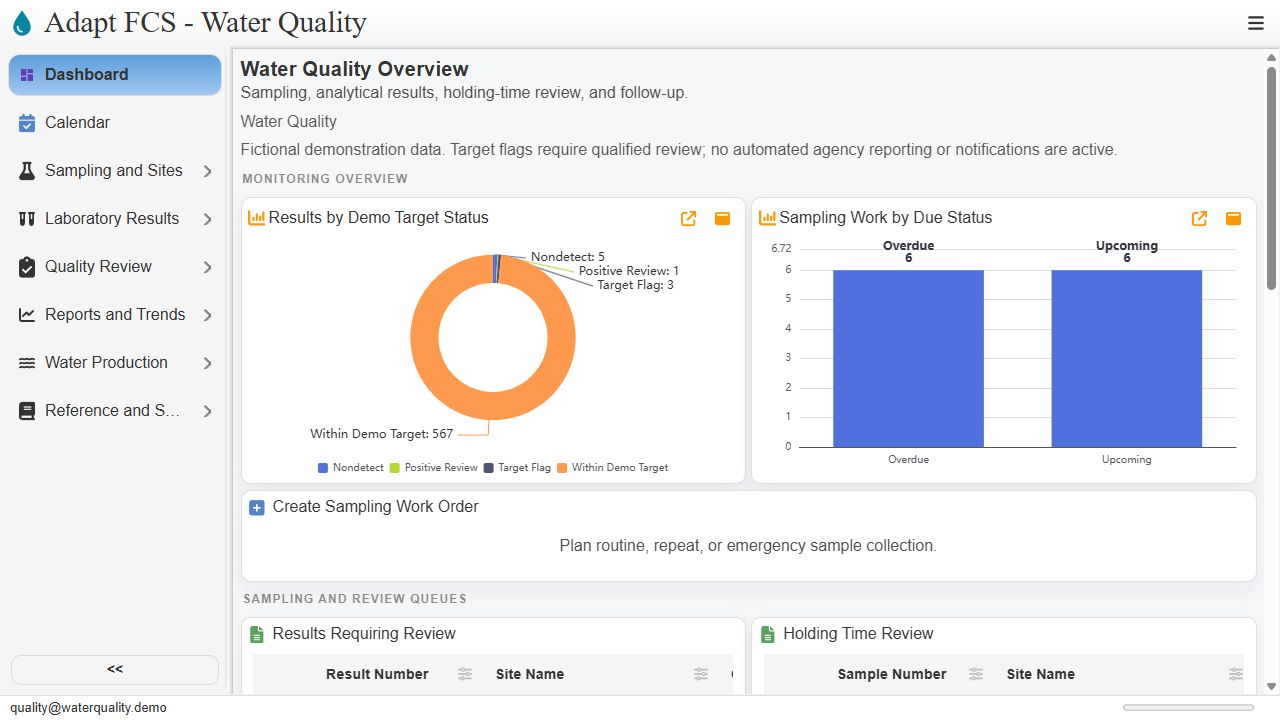
Link to chapterOnce signed in to the Water Quality workspace, start with the dashboard. The sampling chart summarizes recorded work by due status. The review areas below provide a route into more detailed records. In this walkthrough, we will follow the manual planning and tracking tools already present in the demonstration.
Find the sampling site
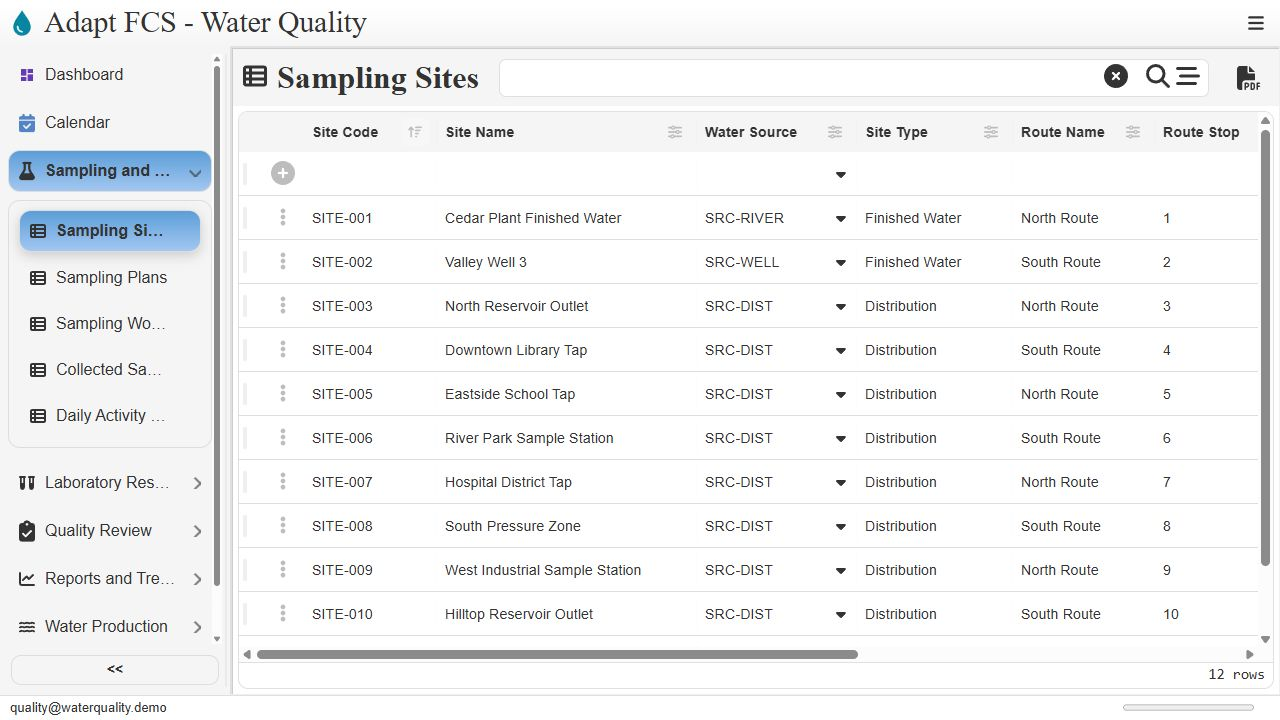
Link to chapterOpen Sampling and Sites in the left menu, then choose Sampling Sites. The register lists site identifiers, names, water sources, site types, and route information. A consistent site identifier connects later plans, work orders, and collected samples. We will use Hospital District Tap, site zero zero seven.
Check the site's route information
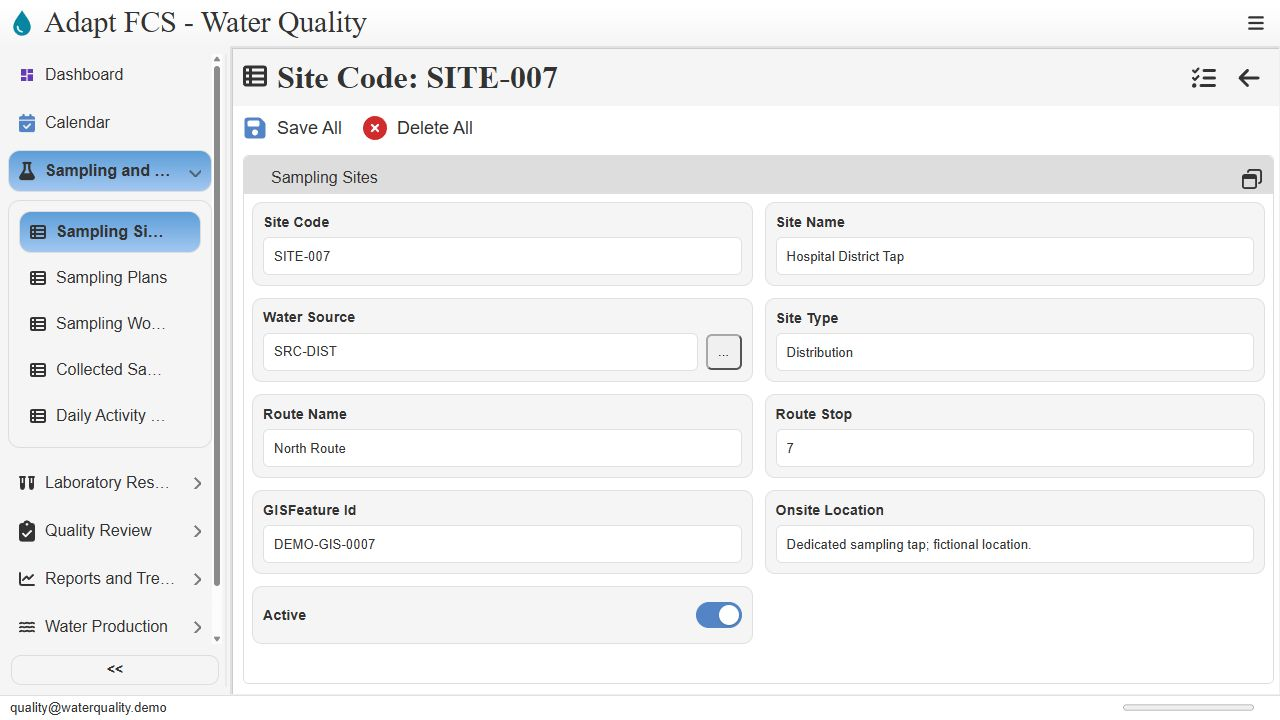
Link to chapterThe site record identifies Hospital District Tap as a distribution site on the North Route, at stop seven. Its onsite location description helps staff identify the collection point. The GIS identifier in this demo is an example reference, not a live map connection. Verify the intended location before planning collection.
Review the sampling plan register
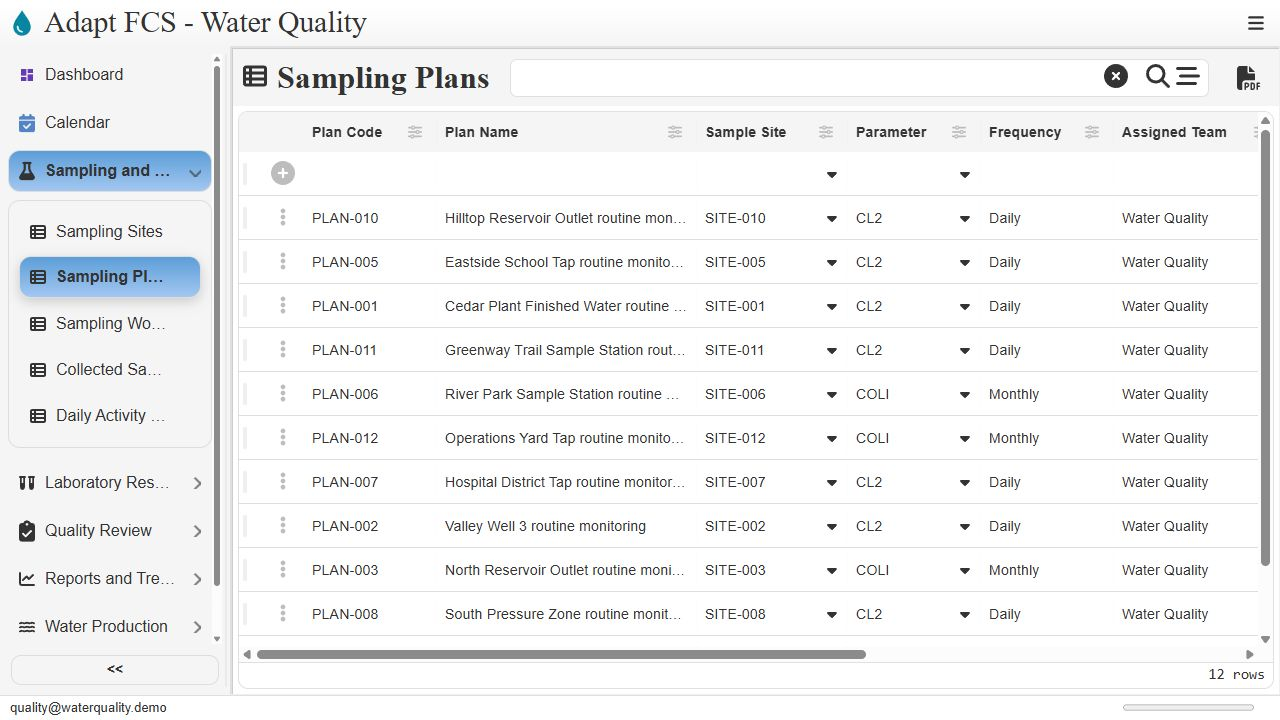
Link to chapterNext, choose Sampling Plans from the same menu. Each plan brings together the site, parameter, descriptive frequency, assigned team, next due date, and instructions. This register helps staff review what is expected at each location. Open plan zero zero seven to inspect the plan for Hospital District Tap.
Understand the plan's schedule fields
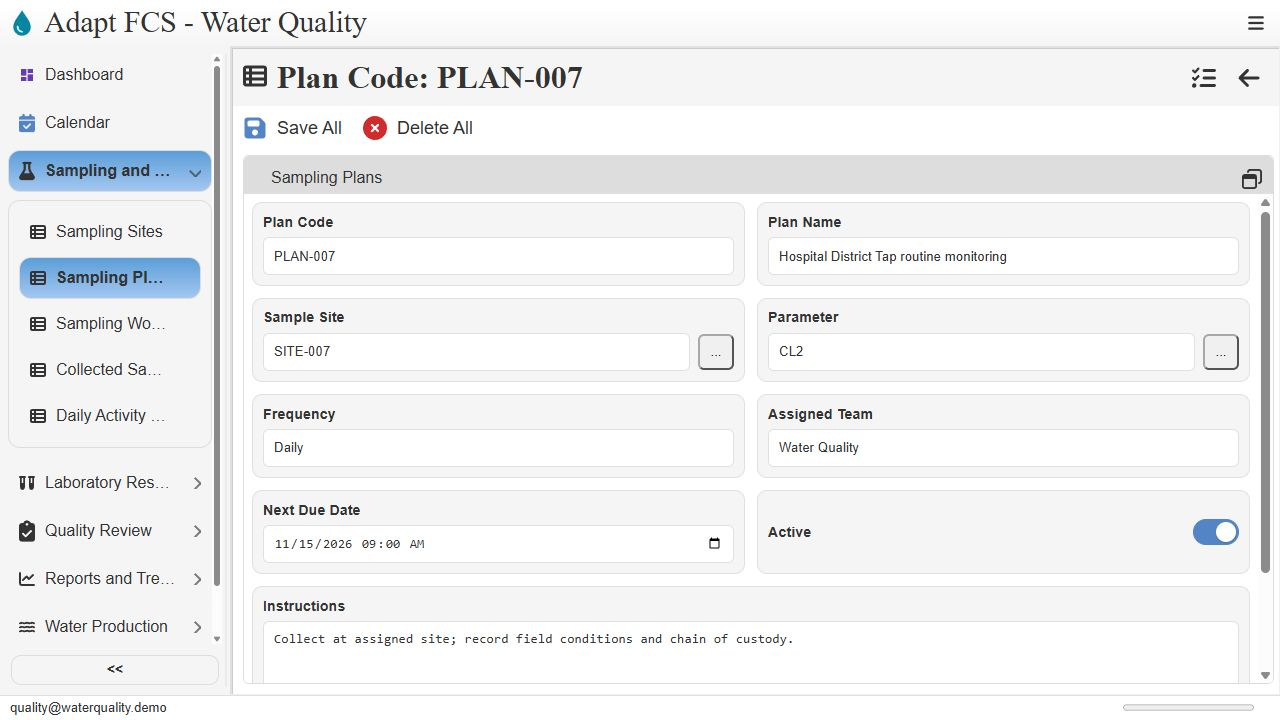
Link to chapterThis plan links site zero zero seven to the chlorine parameter. It records a daily frequency, the Water Quality team, a next due date, and collection instructions. These are manually maintained planning fields. The frequency text does not create recurring work orders, and the next due date does not advance automatically in this demonstration.
Translate plans into collection work
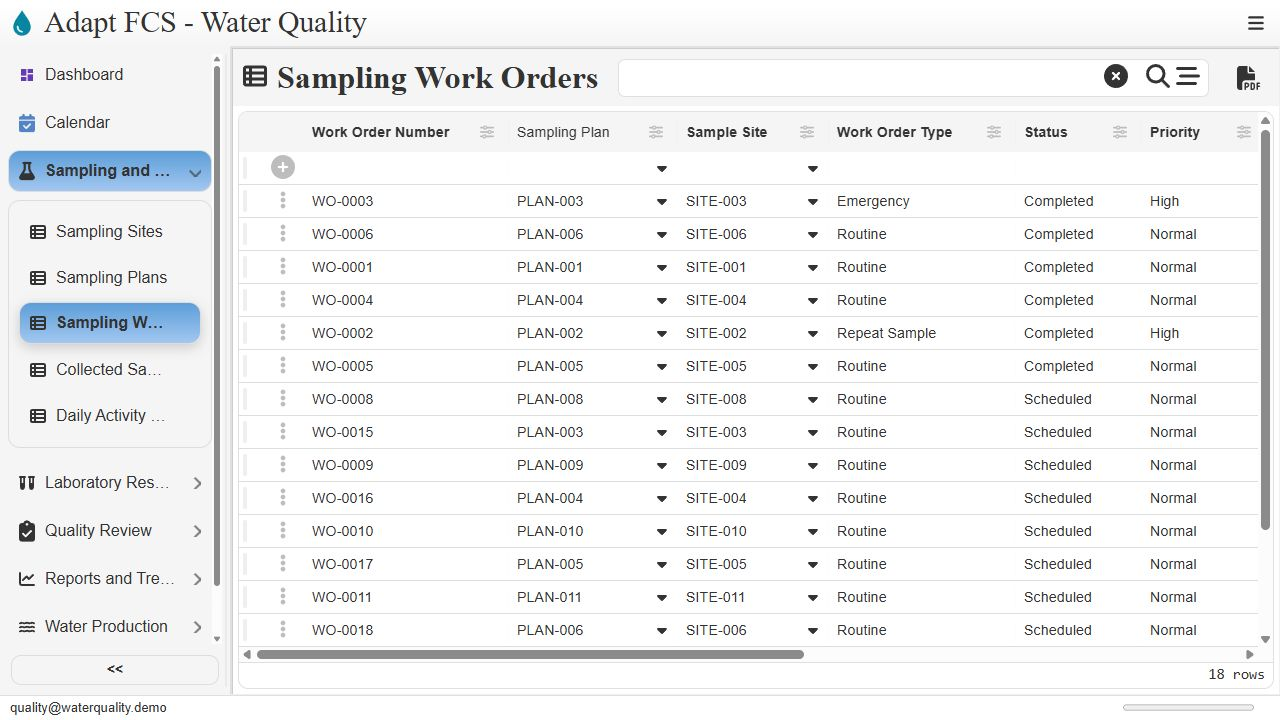
Link to chapterChoose Sampling Work Orders to review individual collection tasks. The register includes routine, repeat, and emergency examples, with status, priority, assigned staff, and due dates. A work order can reference a sampling plan and must identify its site. Staff use these records to organize the actual collection work.
Prepare a work order manually
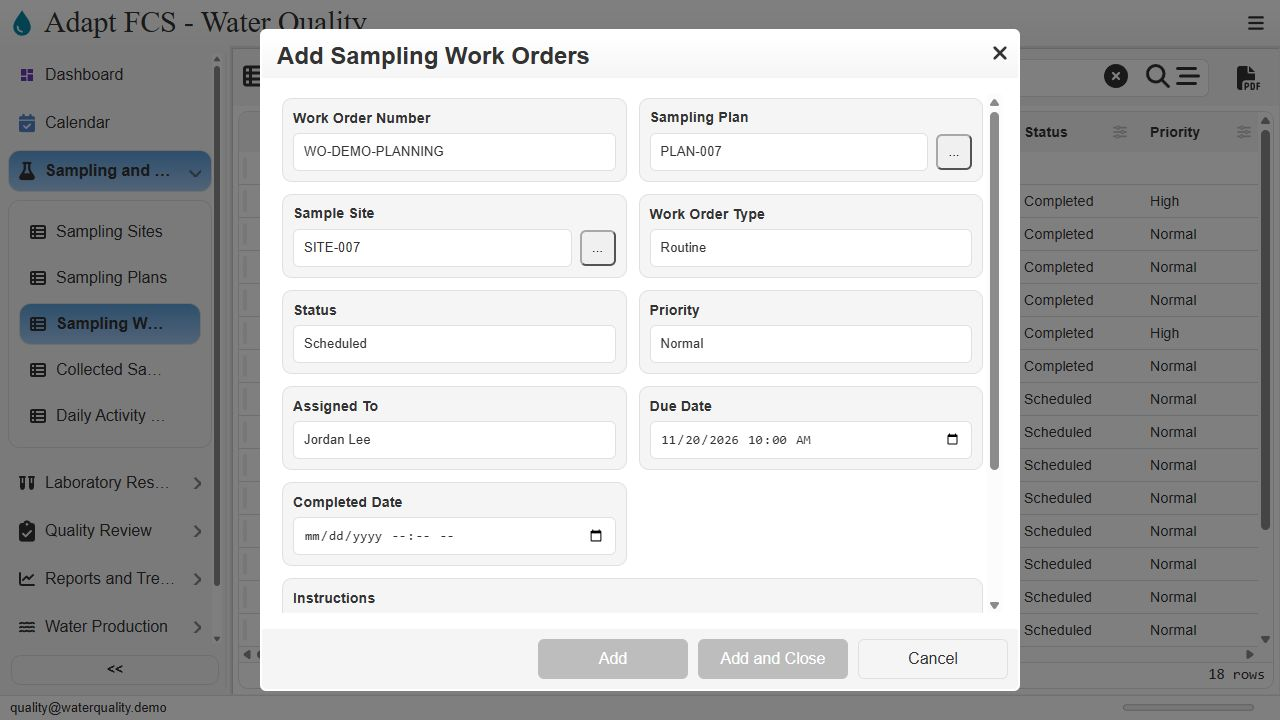
Link to chapterThe Add form shows how staff prepare a work order manually. This example draft identifies plan zero zero seven and site zero zero seven, sets the work to Scheduled, records Jordan Lee as the assignee, and supplies a due date and instructions. We cancel this draft after capture. No unfinished example is left in the database.
Track ownership and progress
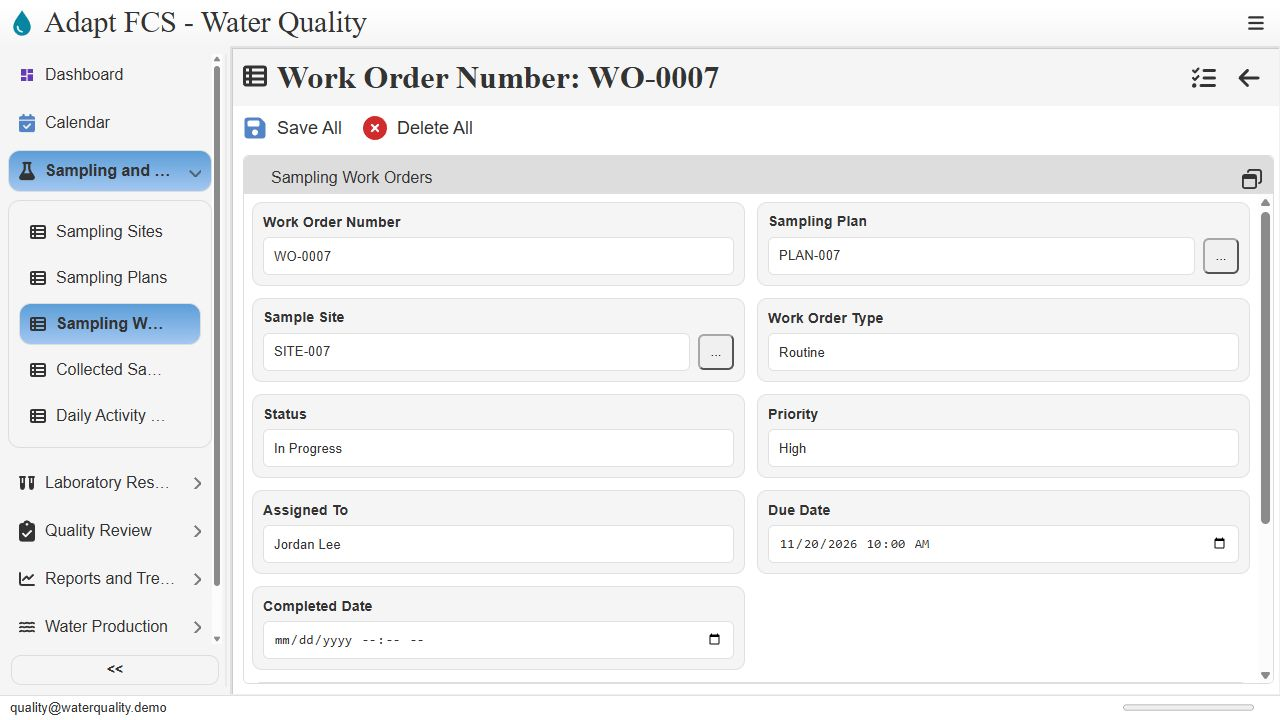
Link to chapterNow inspect an existing work order for the same plan and site. Work order zero zero zero seven is marked In Progress, with high priority and Jordan Lee recorded as the assignee. Its due date and completion field sit together. Staff can review and maintain these details as the collection work progresses.
Narrow the register by status
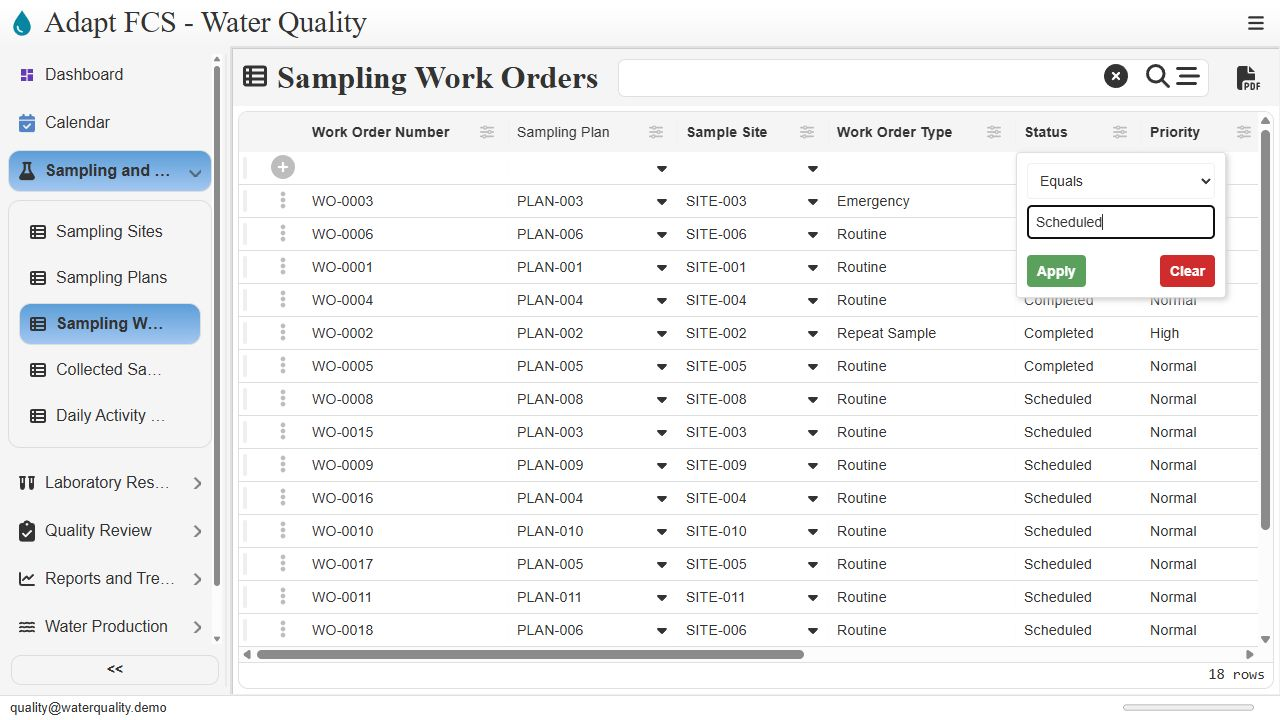
Link to chapterBack in the work order register, open the Status column options and choose Set filter. Select Equals and enter Scheduled, then apply the filter. The same column controls provide a familiar way to narrow a busy register. Here, we are selecting which records to view rather than changing their status.
Review the scheduled work
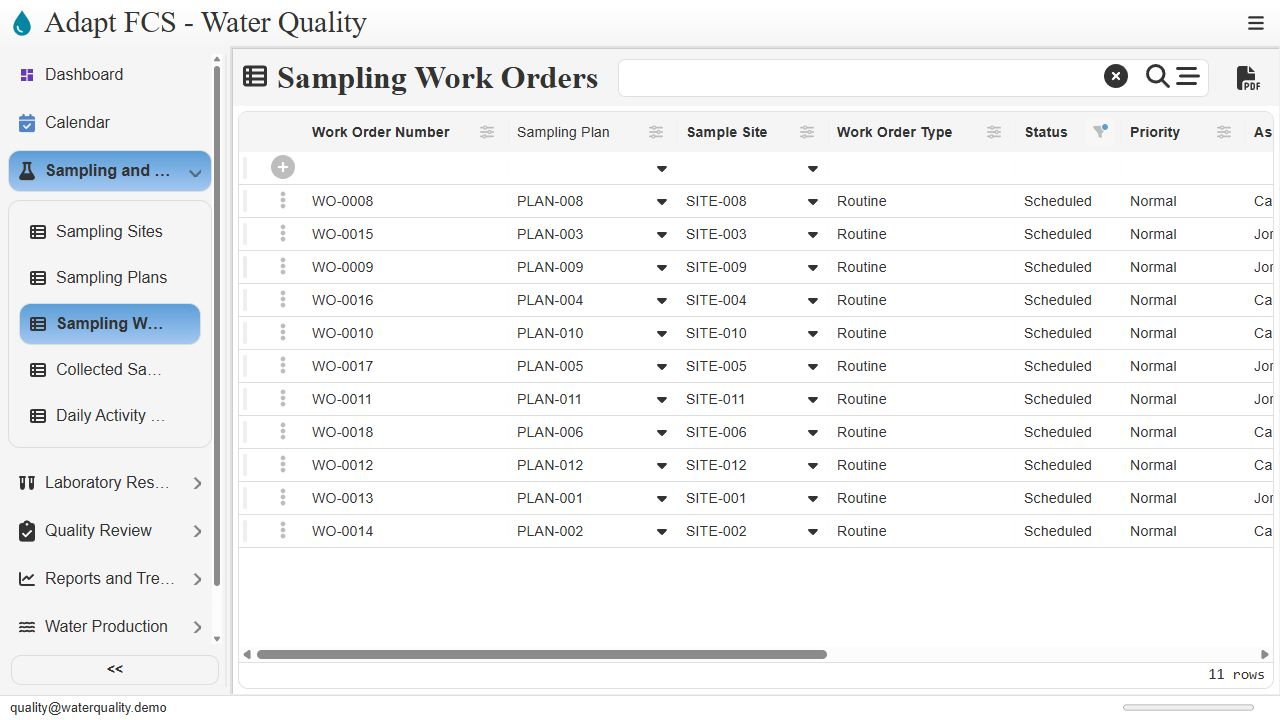
Link to chapterThe register now shows the scheduled work orders. Staff can review their sites, priorities, assignments, and due dates without the completed examples filling the view. Clear the filter when you want the broader register again. Filtering supports daily review; it does not create new sampling work or send a reminder.
Review open work by route
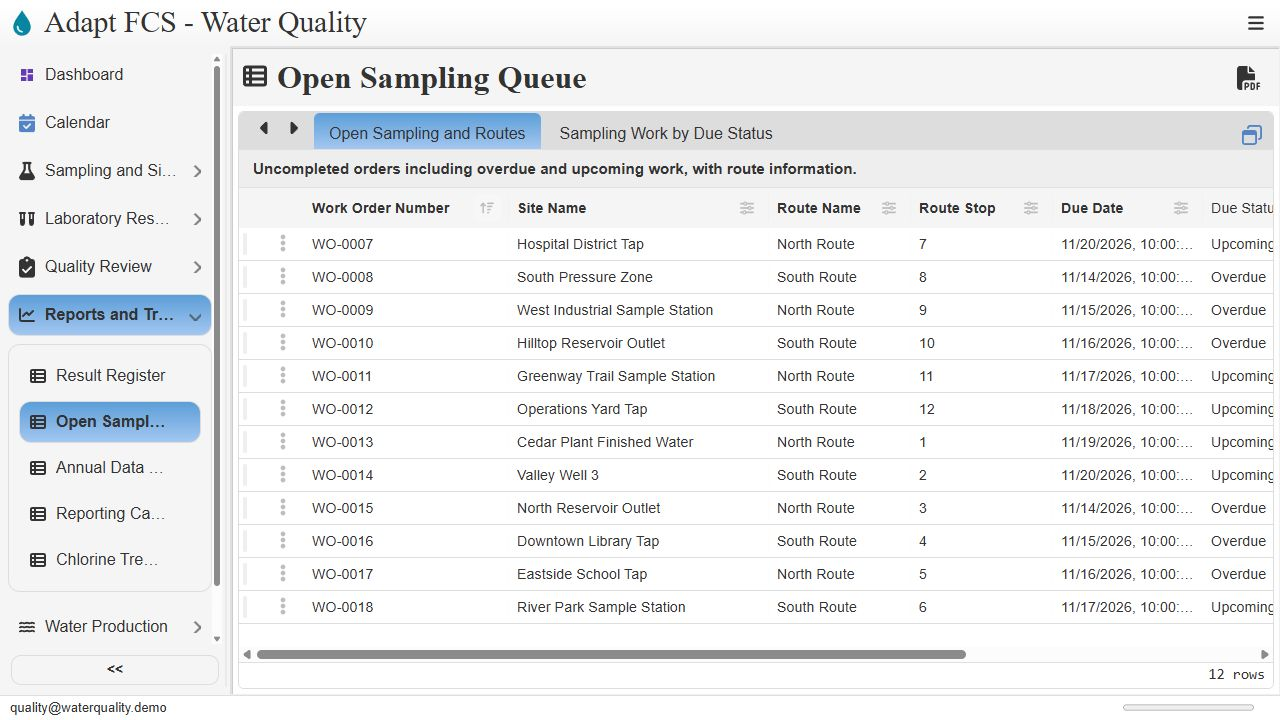
Link to chapterFor a combined operational view, open Reports and Trends, then Open Sampling Queue. The report brings work order numbers together with site names, route names, route stops, and due dates. It focuses on uncompleted orders so staff can review the remaining collection work and organize a route using the recorded information.
Switch to the due-status chart
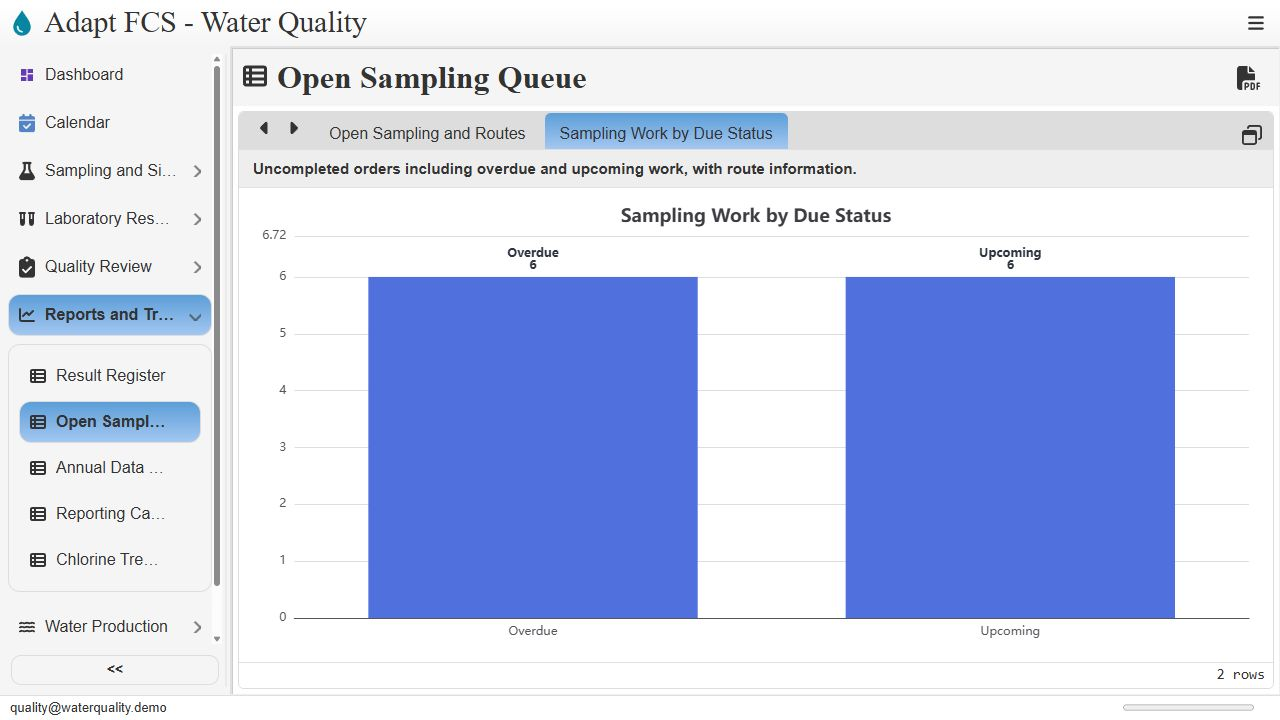
Link to chapterSelect Sampling Work by Due Status above the report to switch from rows to a chart. The refreshed demonstration shows overdue and upcoming work as separate groups. Use this summary to identify where a closer review is needed, then return to the report for the individual tasks. No notification delivery is being demonstrated.
Review a completed example
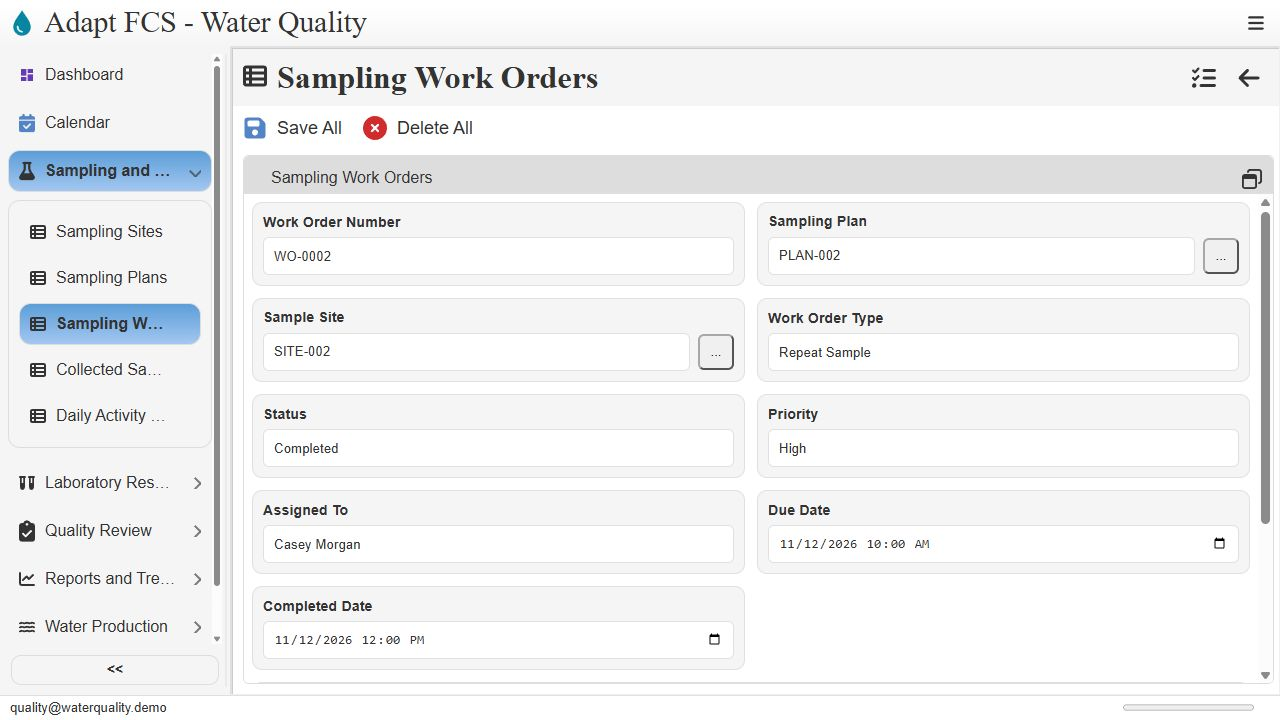
Link to chapterTo compare the progress states, here is a previously completed repeat sampling order. Work order zero zero zero two records its Completed status, assignee, due date, and completion date. Its instructions describe the earlier target-flag investigation. These are recorded workflow details, not an automatic certification that every sampling requirement was satisfied.
Connect the work to collection history
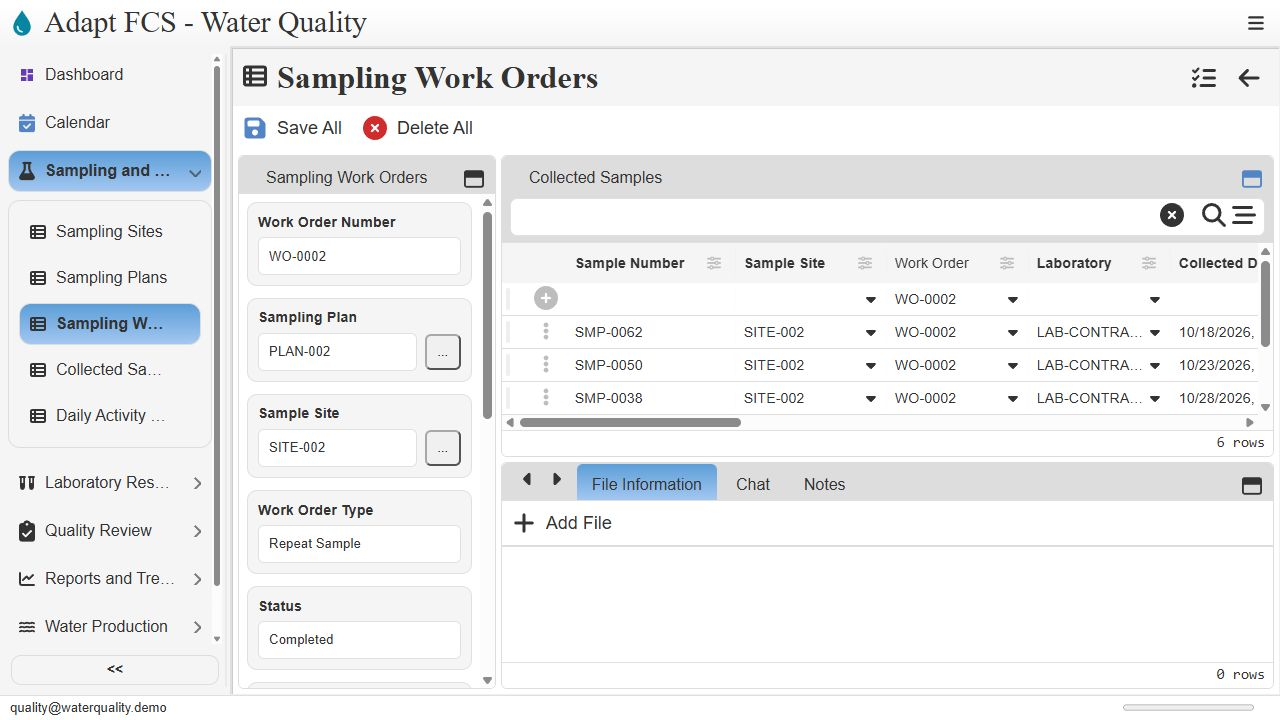
Link to chapterThe record layout also shows collected samples related to the work order. Sample identifiers, site references, laboratory details, and collection information connect the planning record to collection history. Staff can open a related sample for closer inspection. That relationship helps keep the work order and its supporting records connected.
A repeatable manual planning workflow
Link to chapterThe workflow is straightforward: identify the site, review the plan, prepare a work order, assign the work, and use registers and reports to follow progress. The existing demo supports these manual steps. Automatic recurring work generation and sampling deadline reminders remain separate capabilities to configure or develop and verify for the intended deployment.
Closing
Link to chapterInstrumental closing; no narration.
No matching chapters. Try another word or clear the search to read the full script.
About this demonstration
The video uses fictional data and illustrative operating targets. It does not determine regulatory compliance or demonstrate agency submissions, live laboratory/GIS/SCADA connections, offline synchronization, or automatic sampling work generation. Staff and contractor sign-in configurations are examples; organization sign-in requires customer-specific setup and verification.
Video access is public. The interactive application has its own sign-in and permission controls. Version 1 · November 2026.