
Water Quality walkthrough
Review Holding Times
Review the receipt-focused holding queue, compare recorded deadlines, and inspect a sample awaiting laboratory receipt, with the workflow limitations explained.
Download PDF walkthroughFull narration and screenshots, with a link back to this video.
Find what matters to you
Explore the walkthrough
Choose a chapter to play from that point, or read the full narration below.
Read the walkthrough
Narration and screenshots
The complete narration is below. Search the script or use your browser’s Find command. Select any screenshot to view it at full size.
Introduction
Link to chapterUse the existing holding-time view to review samples awaiting laboratory receipt. We will compare recorded collection times and deadlines, inspect an underlying sample, and explain the boundaries of this demonstration so receipt tracking is not mistaken for complete laboratory deadline management.
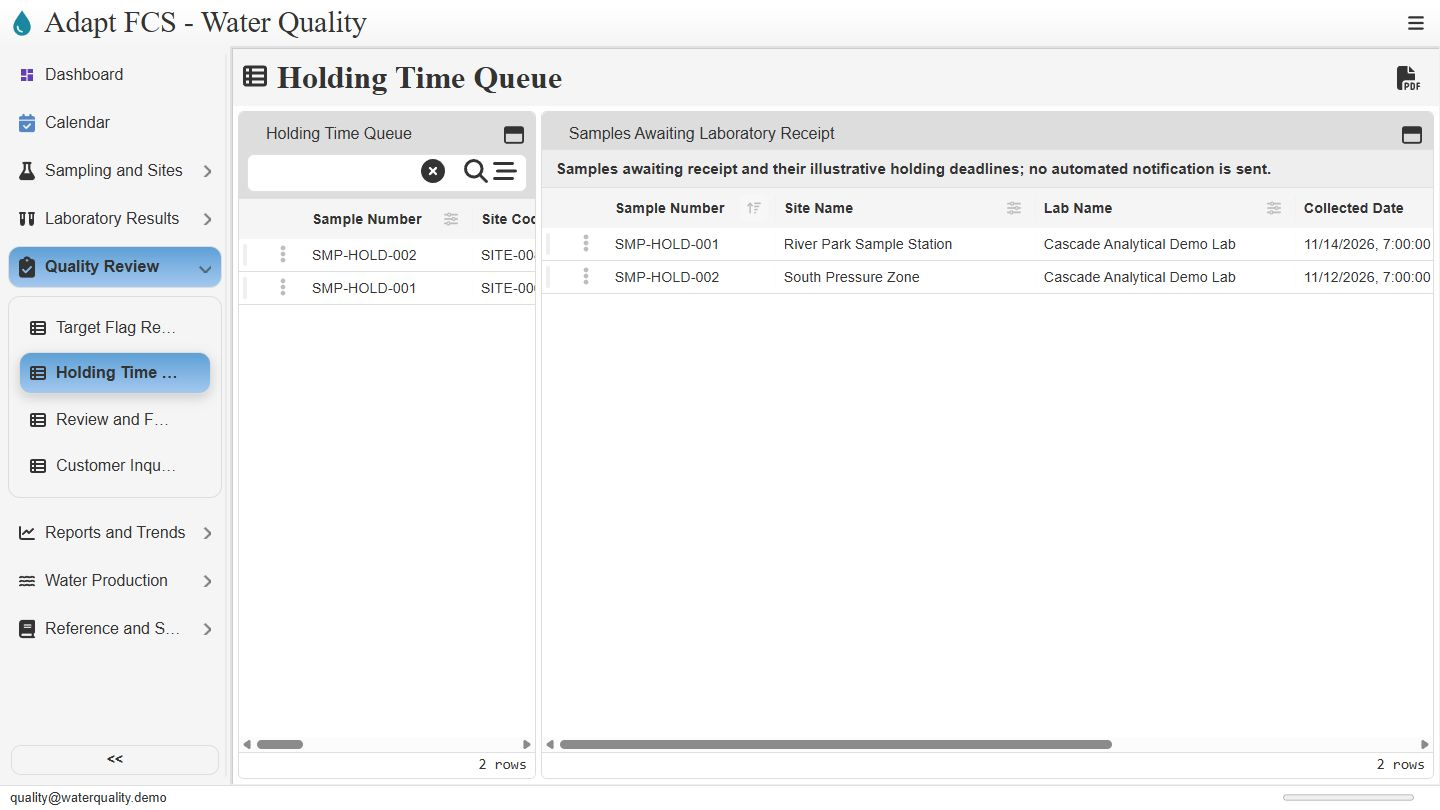
Open the holding-time review view
Link to chapterOpen Quality Review and choose Holding Time Queue. The current demonstration focuses on collected samples still awaiting laboratory receipt. It displays two seeded examples. This is a focused receipt-review tool, rather than a complete per-test laboratory holding-time management system.
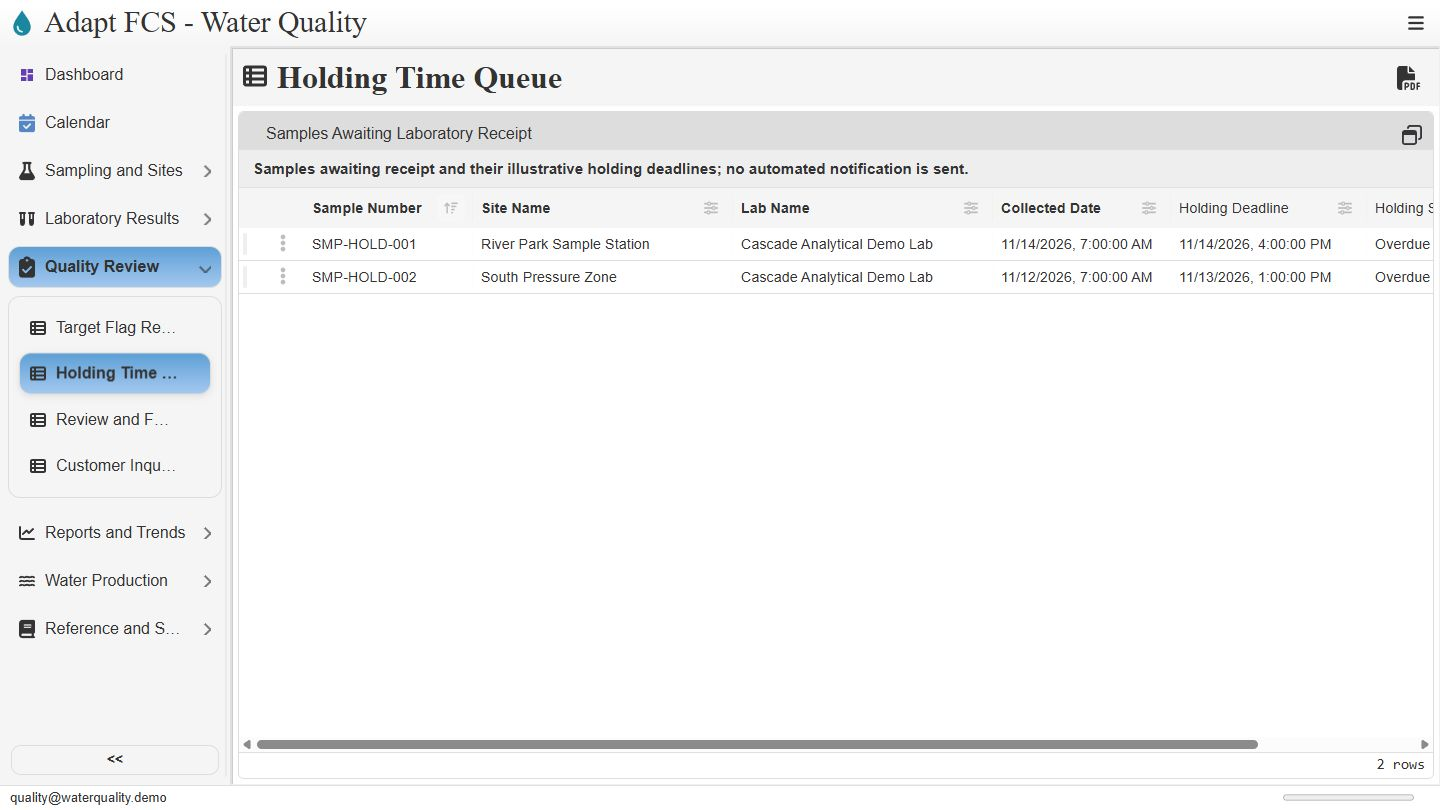
Compare recorded deadlines with the queue status
Link to chapterExpand the report pane to compare sample numbers, locations, laboratories, collection times, and recorded deadlines. Both examples are shown as Overdue in this capture. The notice states that no automated notification is sent. Staff can use the view to identify items needing a closer review of receipt information.
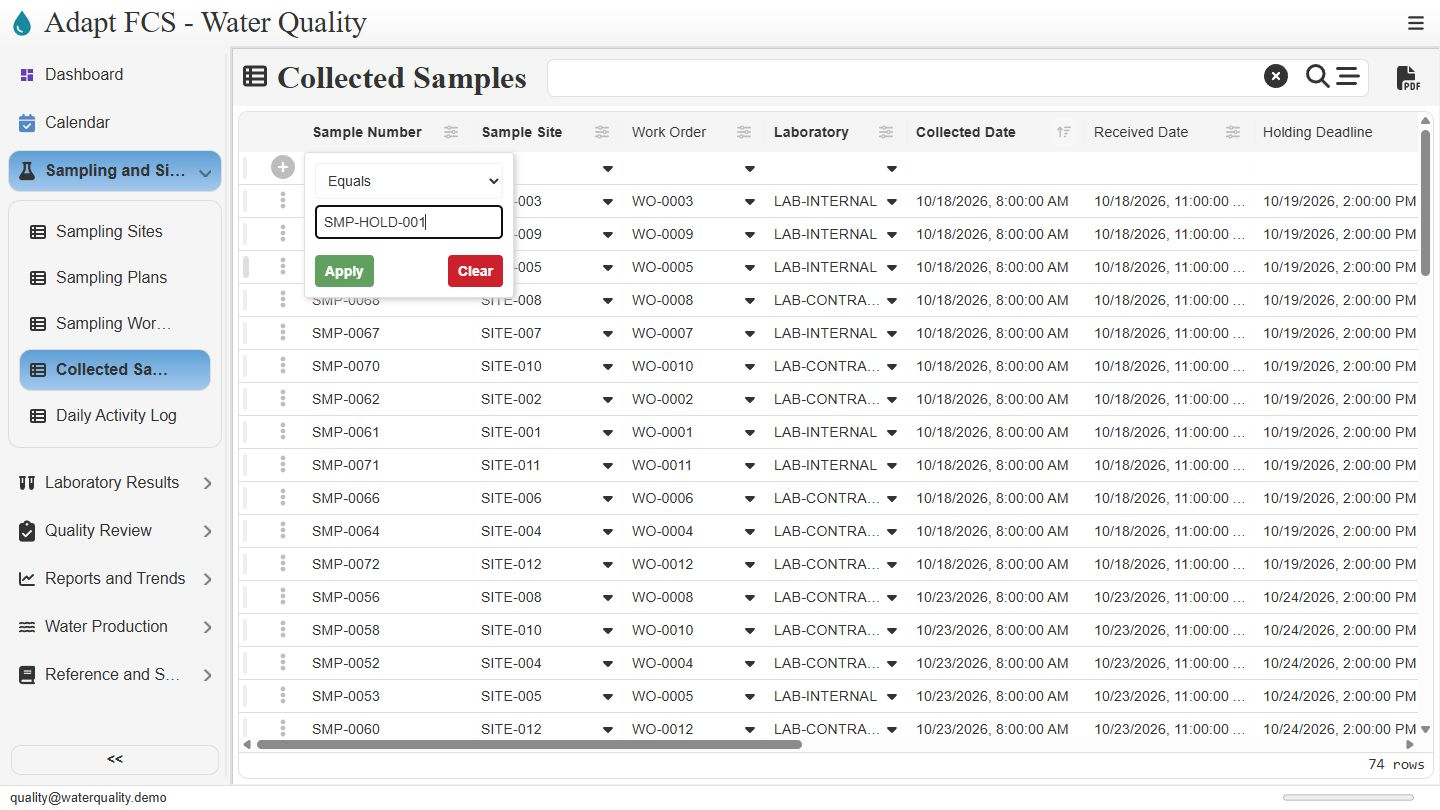
Find the underlying collection record
Link to chapterTo inspect the source information, return to Sampling and Sites and open Collected Samples. Use the Sample Number column filter, choose Equals, and enter the holding sample identifier. Open the matching record from its row selector. The queue is a reporting view; use the sample register to review the underlying collection.
Check why the sample awaits receipt
Link to chapterThis example references River Park Sample Station and the contract laboratory. Its collected time and holding deadline are recorded, while Received Date is blank and Sample Status is Awaiting Receipt. Confirm the actual laboratory handoff before updating those entries. A blank date might reflect a real delay or incomplete data entry; the screen alone cannot decide which.
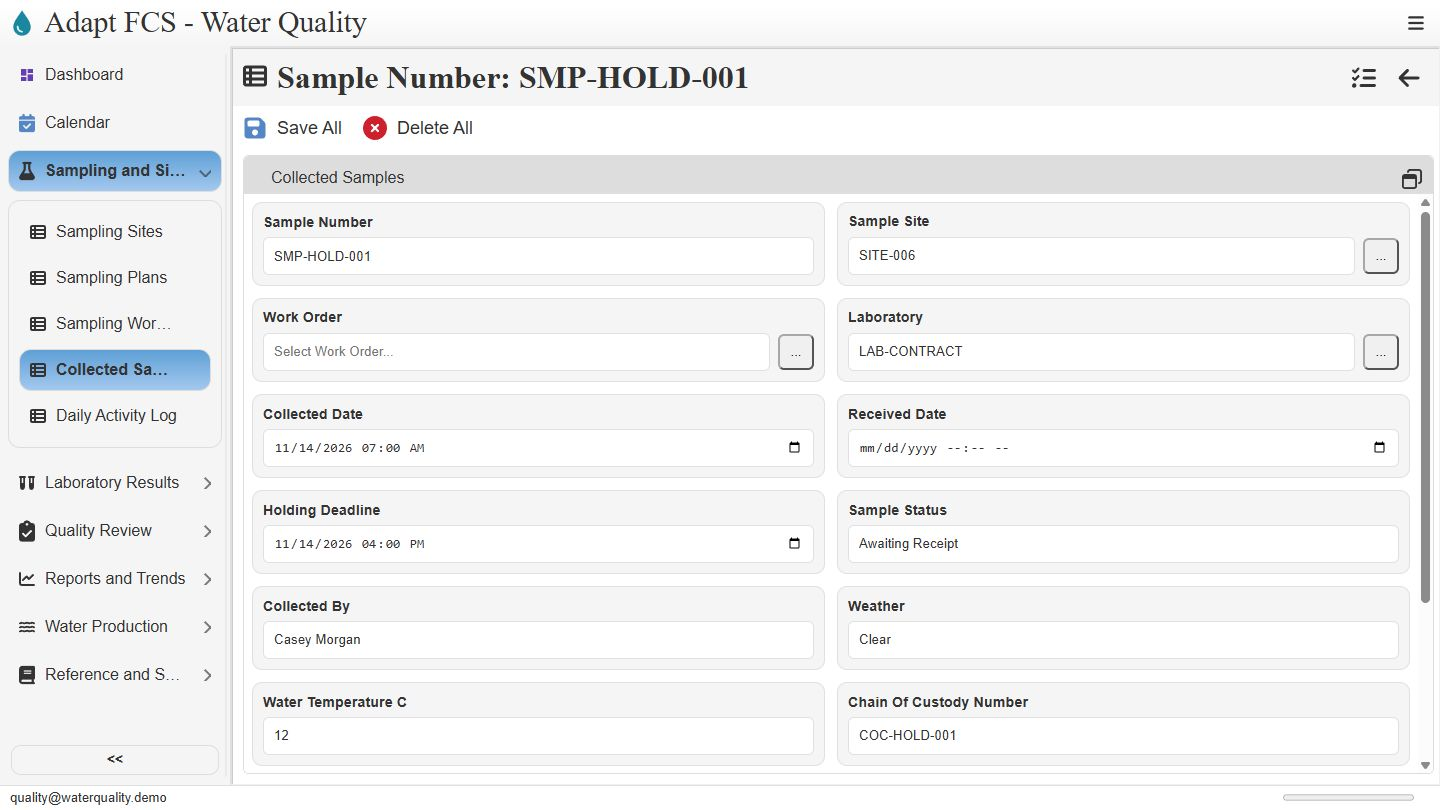
Document follow-up and understand the limit
Link to chapterThe field note asks staff to confirm courier receipt before the illustrative deadline. Once receipt is recorded, this receipt-focused queue no longer provides complete oversight of later analysis milestones. Separate per-test deadlines, approved deadline calculations, and delivery of warnings require further configuration or implementation and verification. We leave the example unchanged.
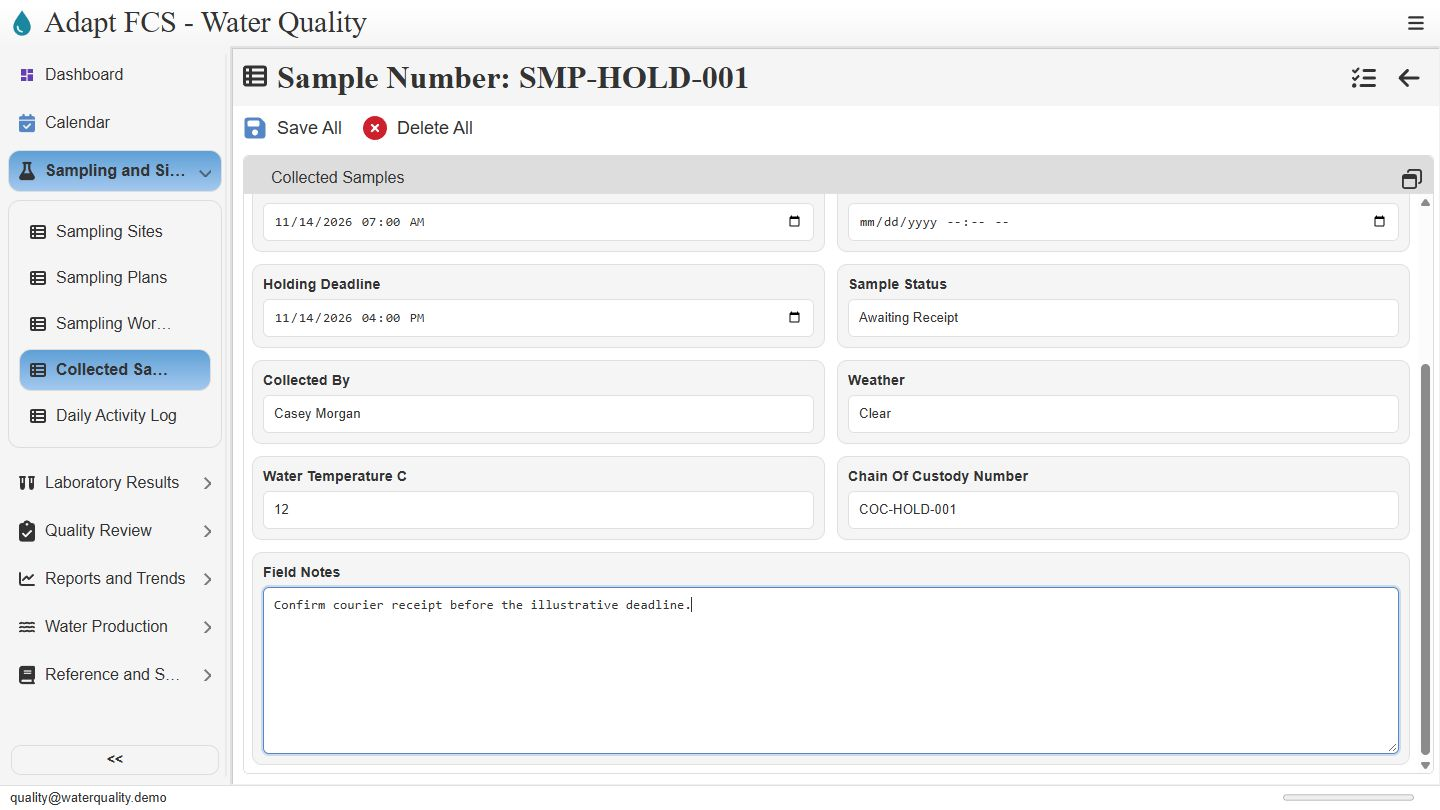
Closing
Link to chapterInstrumental closing; no narration.
No matching chapters. Try another word or clear the search to read the full script.
About this demonstration
The video uses fictional data and illustrative operating targets. It does not determine regulatory compliance or demonstrate agency submissions, live laboratory/GIS/SCADA connections, offline synchronization, or automatic sampling work generation. Staff and contractor sign-in configurations are examples; organization sign-in requires customer-specific setup and verification.
Video access is public. The interactive application has its own sign-in and permission controls. Version 1 · November 2026.